goppo user manual — Everything you can do (and how to do it)
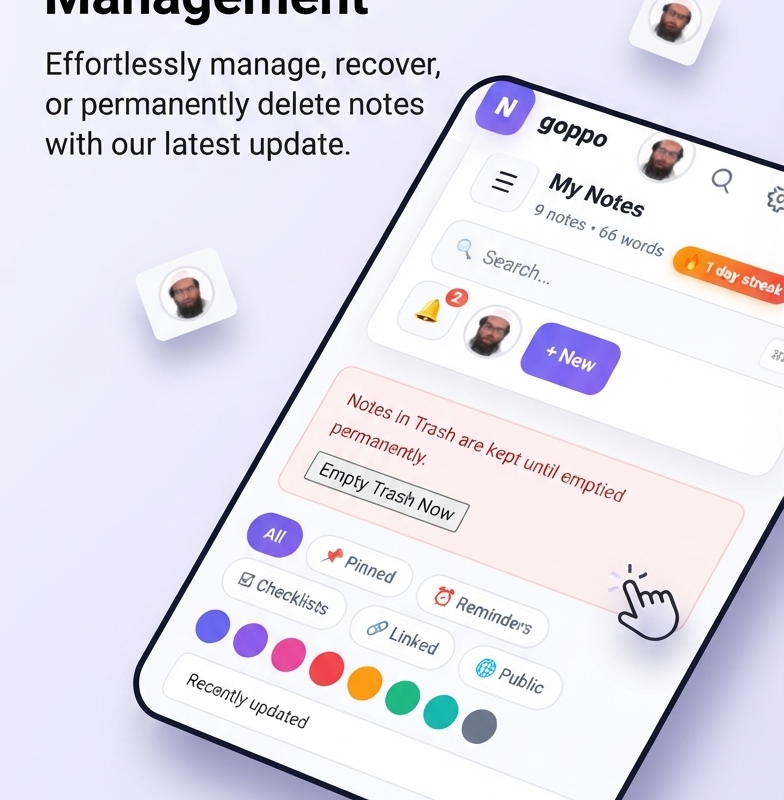
New to goppo? Already using it but wondering what half the buttons do? This is your complete guide — every feature, every shortcut, every trick. Bookmark it.
If you just want to start writing, jump to “Your first note”. If you’re curious what goppo can really do, read the whole thing. It takes about 12 minutes.
📚 Table of Contents
- Getting started
- Your first note
- Note templates
- Organizing your notes
- Note series — telling a longer story
- The editor — everything it can do
- Four ways to see your notes
- Search and the command palette
- Advanced search operators
- Calendar & reminders
- Chat and conversations
- The community space
- Bookmarks & your reading list
- Weekly email digest
- Install goppo on your phone
- Working offline
- Themes and personalization
- Keyboard shortcuts (the full list)
- Frequently asked questions
🚀 Getting started
Create your account
Visit goppo.xyz, click Log In in the top-right, and choose Sign Up. You’ll need:
- A username (no spaces, letters and numbers only)
- A valid email (we never share it)
- A password at least 8 characters long
You’re in. No email confirmation required. You can change any of these later from Edit Profile in the account menu.
Find your way around
The notes dashboard has 5 main zones:
- Top bar — search, layout switcher, view tabs, notifications, account menu
- Left sidebar — folders, tags, community links, recent notes
- Main area — your notes (grid, board, calendar, or timeline)
- Bottom bar (mobile) — quick access to Notes, Overdue, Trash
- Floating buttons — the + to create a new note, chat bubble to open chat
Your public profile lives at goppo.xyz/author/your-username/. That’s where others can see your public notes, badges, and reputation. You’ll find a link to it in the account menu.
✍️ Your first note
Click the purple + New button (top-right) or the floating + at the bottom.
A modal opens with everything you need:
- Icon picker — pick one of 12 emojis to represent the note
- Title field — short and descriptive
- Body — the main content area
- Folder — organize from day one
- Tags — comma-separated (e.g.,
work, ideas, sprint) - Reminder — optional date/time
- Color — pick from 8 preset dots at the bottom
- Visibility — private (only you) or public (visible to the community)
Type, then click Save Note or press ⌘ + Enter.
💡 Auto-save — goppo saves your work automatically 1.4 seconds after you stop typing. You’ll see “Saved just now” in the top-right of the editor.
📋 Note templates
Instead of starting from a blank page every time, start from a template. goppo comes with six built-in templates, and you can create your own.
Built-in templates
- 📓 Daily Journal — Morning / Afternoon / Evening / Gratitude sections
- 📋 Meeting Notes — Attendees / Agenda / Decisions / Action Items
- 📚 Book Review — Title / Author / Rating / Takeaways / Quotes
- 🐛 Bug Report — Steps to Reproduce / Expected / Actual / Environment
- 📊 Weekly Review — Wins / Challenges / Lessons / Next Week
- 💡 Idea Capture — The idea / Why it matters / First step
Using a template
- Click + New to open the editor
- Look for the “New from template” button in the toolbar
- Pick a template from the list — the fields are pre-filled
- Fill in the blanks, then save
Creating your own templates
- Write a note with the structure you want
- Click Save as template in the note’s menu
- Give it a name and an emoji
- Optionally tick Share publicly — other goppo users can then reuse it
Your templates appear alongside the built-in ones every time you start a new note.
📁 Organizing your notes
Folders
- Create a folder: click + next to “Folders” in the sidebar
- Rename a folder: double-click its name (desktop only)
- Move a note into a folder: drag the note card onto the folder, or open the note and change its folder in the control bar
- Delete a folder: notes inside become “Uncategorized” (nothing is deleted)
Tags
Tags are freer than folders. A note can have many tags, and the same note can live in multiple tag lists at once. Use them for:
- Status:
draft,in-progress,done - Topics:
work,personal,health - People:
team,client-acme
Click any tag in the sidebar to filter by it. Click again to clear.
Pinning
Pinned notes always sort to the top, regardless of when they were last edited. Great for:
- A running to-do list you check daily
- Reference notes you consult often
- Your most important project of the week
Click the 📌 icon on any card, or open the note and use the pin button in the toolbar.
Linking notes together
Type [[ anywhere in a note’s body, then start typing another note’s title. A dropdown appears with matching notes — press Enter to link.
The link becomes a clickable reference. If you open the linked note, you’ll see the current note listed under “Backlinks” at the bottom of the modal. This is how you build a personal knowledge graph without extra work.
📚 Note series — telling a longer story
A single note captures a moment. A series captures a story — a set of related notes with a title, a description, and an order.
Think: a travel journal with one chapter per day. A tutorial broken into steps. A year of journaling under one cover.
Creating a series
- Visit
goppo.xyz/my-series/ - Click + New Series
- Give it a name, a description, and choose whether it’s public or private
- Save — that’s it
Adding notes to a series
- Open any public note
- Click 📚 Add to series (bottom of the note)
- Pick the series you want
- The note becomes a chapter, in the order you added it
You can reorder chapters later by dragging them on the /my-series/ page.
Sharing a series
Once a series is public, it has its own URL: goppo.xyz/series/your-slug/. Anyone with the link sees an elegant chapter-by-chapter landing page — with a cover image, description, and a table of contents.
Series are the best way to share a story on goppo. Instead of one note lost in a feed, you get a proper reading experience.
📝 The editor — everything it can do
The editor supports simple Markdown. Here’s what works:
| What you type | What you get |
|---|---|
# Heading | Large heading |
## Heading | Medium heading |
- item | Bullet list |
- [ ] task | Unchecked to-do |
- [x] done | Checked to-do |
**bold** | Bold text |
*italic* | Italic text |
`code` | Inline code |
```code block``` | Full code block |
> [!NOTE] text | Highlighted callout box |
--- | Horizontal divider |
[[Note Title]] | Wiki-style link to another note |
Toolbar buttons
- H2 — insert a heading
- ☑️ To-Do — insert a checkbox line
- 📊 Table — insert a table template
- 💡 Callout — insert a highlighted note box
- 💻 Code — insert a code block
- 🖼️ Media — attach an image or file from your computer
- 🔗 [[Link]] — start a note link
- 📅 {{var}} — insert dynamic values (today’s date, your name, etc.)
Image paste and drag-and-drop
Copy any image from the web (right-click → Copy Image), click in the editor, and press ⌘ + V. Or drag an image file from your desktop straight into the textarea. Either way, goppo uploads it automatically and inserts the markdown for you.
Template variables
Click the 📅 {{var}} button to insert dynamic values that get filled in automatically when you save:
{{date}}→ today’s date{{time}}→ current time{{weekday}}→ “Monday”{{user}}→ your display name{{site}}→ the site name
Useful for journaling templates: “{{weekday}}, {{date}} — How I’m feeling today:”
Split view and preview
At the top-right of the editor you’ll see three mode buttons:
- Edit — just the textarea (default)
- Split — textarea on the left, live preview on the right
- Preview — see exactly how the note will look
Zen mode
Click the 🧘 button in the toolbar (or press ⌘ + Shift + F) to hide the sidebar, top bar, and everything else. Just you and the words.
Focus timer
The little Pomodoro timer in the toolbar counts down 25 minutes. Click ▶ to start, ↻ to reset. When it hits zero, you’ll get a soft notification. Great for timed writing sprints.
Version history
Every time you save a change, goppo keeps a snapshot. Click the ⏱ button in the toolbar (or press ⌘ + H) to see the last 20 versions. Restore any of them with one click.
👁 Four ways to see your notes
Look at the top bar — you’ll see four small icons. These switch how your notes are laid out:
▦ Grid view
The default. Cards in a masonry-style grid. Best when you want to scan many notes quickly.
📋 Kanban board
Three columns: To Do, Doing, Done. Drag notes between columns to change their status. Best for tracking work-in-progress.
📅 Calendar view
Your notes appear as colored dots on the day they were created. Click any day to see what you wrote. Best for journaling or daily logs.
📜 Timeline view
A vertical list, newest first. Shows metadata for each note — word count, read time, tags. Best for reviewing recent activity.
Your preferred view is remembered the next time you visit.
🔍 Search and the command palette
Quick search
Click the search bar (or press ⌘ + K) and start typing. goppo searches across titles, bodies, and tags as you type.
Command palette
Press ⌘ + Shift + P anywhere on the site to open the command palette. This is the fastest way to do anything:
- Type “kanban” → switch to board view
- Type “dark” → toggle dark mode
- Type “new note” → start a fresh note
- Type “settings” → open preferences
- Type a note’s title → jump straight to it
Use ↑ and ↓ to navigate results, Enter to run, Esc to close.
🔎 Advanced search operators
For power users, goppo understands query operators. Type them into the search bar (or the search field on the page) to narrow results precisely.tag: author:me is:pinned
is:public is:archived color:red
before:2026-01-01 after:2025-01-01
-draft
| Operator | Meaning | Example |
|---|---|---|
tag: | Has a specific tag | tag:work |
author: | Owned by a specific user | author:me |
is: | Boolean flag | is:pinned or is:public |
color: | Note’s color | color:red |
folder: | In a folder | folder:projects |
before: | Created before a date | before:2026-01-01 |
after: | Created after a date | after:2026-06-01 |
has: | Has a feature | has:reminder or has:image |
-word | Exclude matches | -draft |
Combine operators for surgical results:
tag:work is:pinned before:2026-06-01— pinned work notes from before Juneauthor:me has:reminder -draft— my notes with reminders, no draftscolor:red tag:urgent— red urgent notes
Advanced search also powers the shortcode if you embed it on any public page.tag: author:me is:pinned
is:public is:archived color:red
before:2026-01-01 after:2025-01-01
-draft
📅 Calendar & reminders
Set a reminder on any note and goppo will not just nudge you — it will sync with your real calendar.
Setting a reminder
- Open a note
- In the control bar, set ⏰ Remind to a date and time
- Optionally set Repeat — daily, weekly, or monthly
- Save
When the time arrives, you’ll get an email reminder. The note also appears in your Overdue tab if it’s past due.
Add to Google / Apple / Outlook calendar
On each note with a reminder, you’ll find three buttons:
- Add to Google Calendar — opens Google Calendar with the event pre-filled
- Add to Outlook — same for Outlook.com
- Download .ics — for Apple Calendar, Thunderbird, or any other client
Subscribe to your whole reminder feed
Your profile page has a personal iCal subscription URL. Paste it into Google Calendar → Other calendars → From URL, and every reminder you set in goppo appears in your calendar automatically — kept in sync.
Works the same way in Apple Calendar (File → New Calendar Subscription) and Outlook (Add calendar → Subscribe from web).
💬 Chat and conversations
The floating chat bubble (bottom-left on desktop) opens your conversations. Everything is private between you and the people you message.
Starting a conversation
- Click the + in the chat header
- Search for a person by name
- Click their name → chat opens
- Type your first message, press Enter
Group chats
In the new-chat dialog, select multiple people. Give the group a name (optional). Click Create. You’re now in a group conversation.
Inside a conversation
- Send a message: type, press Enter
- New line without sending: Shift + Enter
- React with emoji: hover/tap a message → quick reactions appear
- Reply to a message: click ↩ on any message
- Edit your message: click ✏️ → fix → Save
- Delete a message: click 🗑 (only works on your own)
- Search messages: click 🔍 in the header
- Video call: click 📞 in the header (opens Jitsi in a new tab)
Attachments and voice notes
- Send a file: click 📎 → pick from your device
- Send an image: drag it into the chat
- Voice message: hold 🎤 → speak → release to send
🌐 The community space
Any note you mark as public becomes part of the community feed. Others can read it, react, comment, and follow you.
Making a note public
- Open the note
- Change Visibility to “🌐 Public”
- Save
- Click the 🔗 icon to get a shareable link
Your public profile
Every goppo user has a public profile at goppo.xyz/author/your-username/.
Your profile shows:
- Your avatar and display name
- Your bio (from Edit Profile)
- Your current rank and reputation score
- Every badge you’ve earned
- All your public notes, newest first
- A quick stats grid — notes, followers, reactions, streak, total words
You’ll find a link to your own profile under the 👤 user pill in the top-right — that’s you, with your avatar and rank, one click away.
Community pages
- Leaders — top contributors ranked by reputation points
- Trending — notes getting the most reactions this week
- Tags explorer — browse public notes by topic
- Hall of Fame — the all-time leaderboard
Earning reputation
You earn points for contribution:
- Publish a note → +1 point
- Someone reacts to your note → +2 points
- You post a comment → +2 points
- You get a reply → +1 point
- Someone follows you → +3 points
Points unlock ranks: 🌱 Newbie → ✏️ Writer → 🌟 Contributor → 💎 Pro → 👑 Legend. Each rank unlocks badges that appear on your public profile.
🔖 Bookmarks & your reading list
Found an article on the goppo blog you want to read later? Or a public note you want to keep? Click Save and it goes straight to your personal reading list.
Saving a blog post
- Read any article on the goppo blog
- Click the 🔖 Save button near the top of the post
- The button turns indigo and says “Saved”
A reading progress bar appears at the top of the viewport as you scroll — goppo marks the post as “read” automatically once you pass 80%.
Your reading list
All your saved items live at goppo.xyz/bookmarks/. You’ll find:
- A card for every saved post, with thumbnail and excerpt
- A ✕ button on each card to remove it
- Newest saves at the top
Your reading list is private — only you can see it.
✉️ Weekly email digest
Every Sunday morning, goppo sends you a short email summarizing your week. It’s the easiest way to feel your progress without opening the app.
What’s inside
- 📝 Notes you created and updated this week
- ✍️ Words you wrote
- 🔥 Your current writing streak
- ❤️ Reactions received on your notes
- 💬 Comments and replies
- 🏷️ Your top tags of the week
- 📌 Your most-edited note — click through to read it
- 🌟 Your current rank and reputation points
Turning it off
Two ways:
- Click the unsubscribe link at the bottom of any digest email
- Or toggle it off in Edit Profile → Preferences
You’ll only receive digests if you had activity that week — quiet weeks stay silent.
📱 Install goppo on your phone
goppo is a Progressive Web App — you can install it like a native app, no app store needed.
On iPhone / iPad
- Open Safari and visit goppo.xyz
- Tap the Share button (square with arrow up)
- Scroll down → tap Add to Home Screen
- Give it a name → tap Add
On Android
- Open Chrome and visit goppo.xyz
- Wait a few seconds — a banner appears at the bottom: “Install App”
- Tap Install
- Or tap ⋮ menu → Install app
Once installed, goppo opens full-screen without browser chrome. It works offline. It can send you notifications when someone messages you.
📴 Working offline
Lose your connection? goppo keeps working.
What works offline
- Read any note that was loaded before
- Write new notes
- Edit existing notes
- Browse folders, tags, and filtered views
What queues and syncs later
When you save offline, an orange ⏳ Queued badge appears on the note. When your connection returns, everything syncs automatically within a second.
You’ll see a bar at the top of the dashboard:
- 📴 “Offline — changes will queue” when disconnected
- ⏳ “1 change waiting to sync” when there’s a queue
- 🔄 “Syncing…” while uploading
You can also click Sync now to force it manually.
🎨 Themes and personalization
Click the ⚙️ gear icon in the top bar to open the settings panel. You can change:
Theme preset
- Default — purple/blue (the original)
- Nord — cool blue-gray
- Dracula — purple and pink
- Solarized — warm yellow and teal
- Gruvbox — earthy orange
- Mono — pure black and white
Accent color
Pick from 8 preset colors, or click the rainbow circle to choose any color you want. All buttons, links, and highlights update instantly.
Font size
- A- — 90%
- A — 100% (default)
- A+ — 110%
- A++ — 125%
Your choices are saved in your browser and remembered next time you visit.
⌨️ Keyboard shortcuts (the full list)
Global
| Shortcut | Action |
|---|---|
| ⌘ + K | Focus search bar |
| ⌘ + Shift + P | Open command palette |
| ⌘ + N | New note |
| Esc | Close any modal / clear selection |
Inside the note editor
| Shortcut | Action |
|---|---|
| ⌘ + S | Save |
| ⌘ + Enter | Save and close |
| ⌘ + B | Bold |
| ⌘ + I | Italic |
| ⌘ + H | Version history |
| ⌘ + Shift + F | Zen mode (focus) |
| ⌘ + Shift + S | Split view (write + preview) |
| ⌘ + Shift + P | Print / export as PDF |
Views
| Shortcut | Action |
|---|---|
| ⌘ + Shift + K | Kanban board |
| ⌘ + Shift + L | Grid layout |
| ⌘ + Shift + D | Calendar view |
| ⌘ + Shift + Y | Timeline view |
In the notes grid
| Action | Result |
|---|---|
| Shift + Click | Select a range of notes |
| Esc | Clear selection |
❓ Frequently asked questions
Is my data private?
Yes. Your private notes are only visible to you. Public notes are visible to anyone. Chat messages are private between the people in the conversation. Nothing is ever sold, shared, or used for ads.
Where is my public profile?
At goppo.xyz/author/your-username/. You’ll find a link in the top-right corner — the pill with your avatar and rank. Click it and you’re there.
How do I create a series?
Visit goppo.xyz/my-series/, click + New Series, give it a name and description, then add notes to it from each note’s 📚 Add to series button.
Can I export my notes?
Yes. Click Export in the top bar to download all your notes as JSON. Individual notes can be exported as Markdown (📥 button in the editor) or printed as PDF (🖨️ button).
Can I save blog posts to read later?
Yes. Click the 🔖 Save button on any blog post, and it appears in your reading list at goppo.xyz/bookmarks/.
How do I get the weekly email digest?
You’re already subscribed — every account gets it by default. If you haven’t seen one, check your spam folder. You’ll only receive it if you had activity that week.
What happens if I forget my password?
Click “Forgot password?” on the login screen. You’ll get an email with a reset link within a few minutes.
Can I use goppo on multiple devices?
Yes. Log in from any browser on any device. Your notes sync automatically. On mobile, install the app for the best experience.
How do I delete my account?
Open Edit Profile from the account menu and scroll to the bottom. There’s an option to request account deletion. All your data is removed within 7 days.
Why does my streak show 0?
A “day” counts when you create or edit at least one note. If you missed a day, the streak resets. The next note you write starts a new streak at 1.
What are the little orange numbers on my notes?
Those are pending sync indicators. You created or edited the note while offline. As soon as you reconnect, they sync and the badge disappears.
Can I share a note with someone who doesn’t have an account?
Yes. Set the note to Public, click the 🔗 share button, and copy the link. Anyone with that link can read the note — no login required. They can also react and leave a comment.
How do I subscribe to goppo reminders in my calendar?
Open your profile page, copy the iCal subscription URL, and paste it into Google Calendar, Apple Calendar, or Outlook. Every reminder you set on a note will then appear in your calendar — and stay in sync.
How do I undo a mistake?
Most actions show a toast at the bottom with an Undo button for 6 seconds. For notes, you can also restore an earlier version from the ⏱ history panel. If you trashed a note, open Trash from the top bar and click Restore.
Need more help?
This manual covers everything, but if you’re stuck on something:
- 📧 Email: reply to any of our weekly digests
- 💬 Chat: message us directly inside the app
- 📝 Public note: tag it
#helpand someone will find it
We answer every message. That’s a promise.
Last updated: this manual is revised whenever goppo gets new features. Bookmark it and check back.
Welcome in goppo!💙🙏❤️